Tag Markets, CopyX and BIX, in a logical order. With the existing screenshots next to the actions you need to take.
Step 01 / 11
Create your Tag Markets / CopyX account
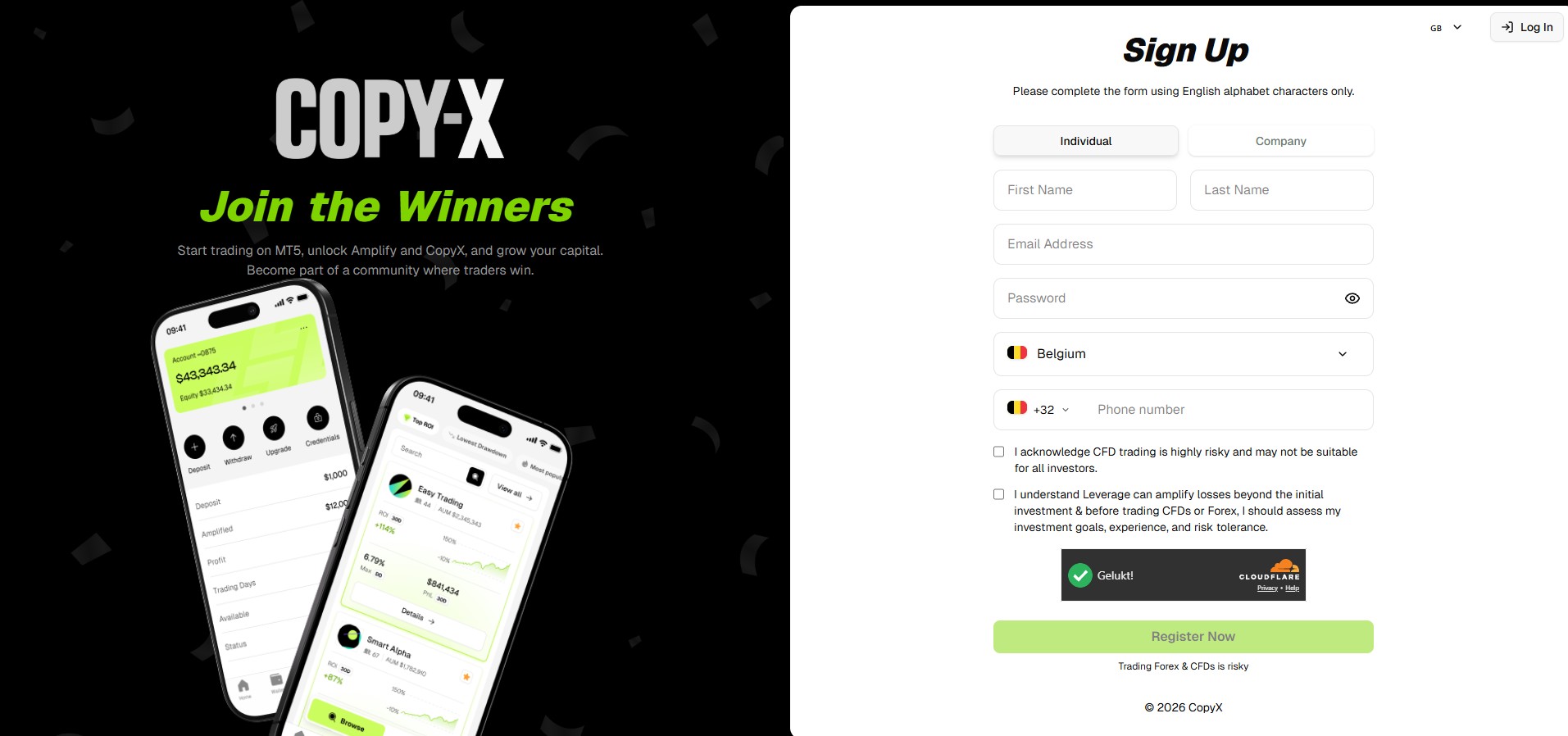
Start via the existing CopyX client link. This route takes you to the registration for the linked Tag Markets account.
Choose an individual or business account as applicable.
Enter your own email address and phone number.
Read the terms and complete the form.
Start registration ↗Registration form via the CopyX client link · Tap to enlarge
✓
Check before you continue
Your registration is complete and you have access to the mailbox you used.
Step 02 / 11
Verify your account and log in
Complete the identity checks the platform asks for.
Log in with the details you created during registration.
If the first login doesn't work, use Forgot Password on the official page.
Two environments: you start in the Tag Markets dashboard. In the next steps you activate and open CopyX from that dashboard.
✓
Check before you continue
You're logged in to your Tag Markets dashboard and the requested verification is complete.
Step 03 / 11
Activate CopyX with the second login
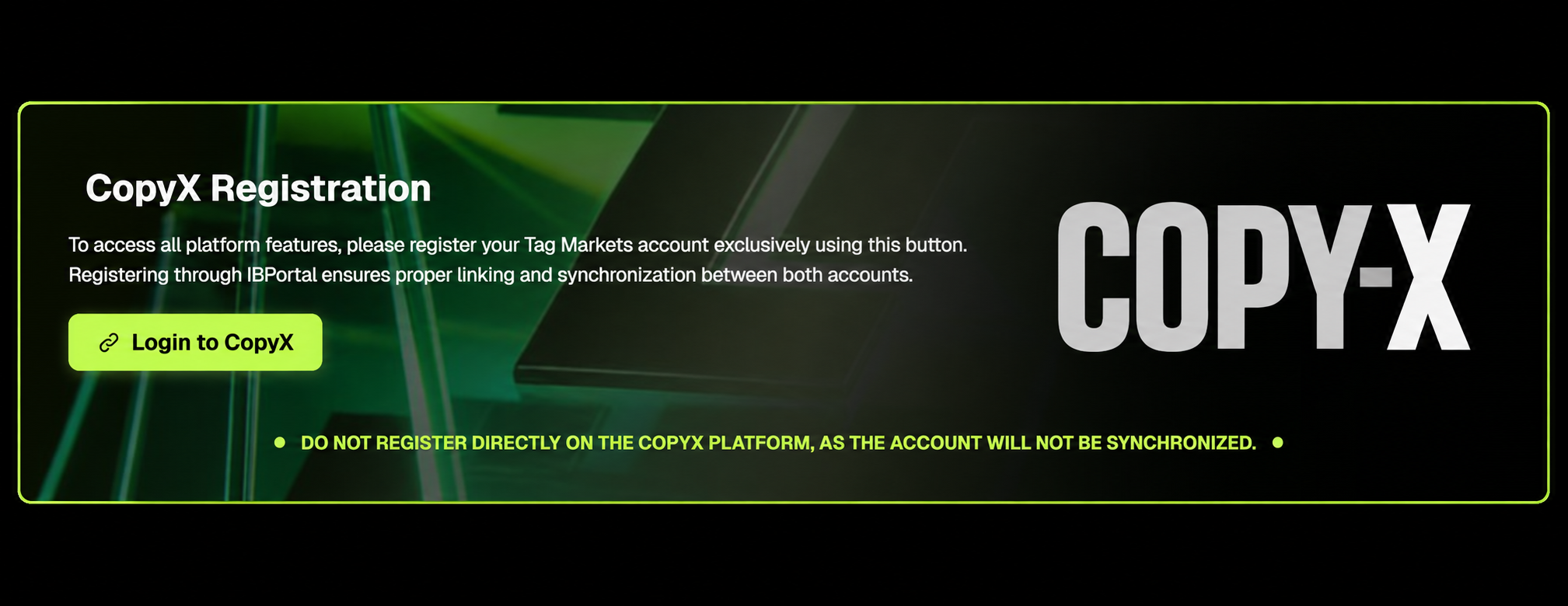
On the Tag Markets dashboard, scroll to CopyX Registration.
Select Login to CopyX.
On the next screen, log in with the same email or username and the same password as your Tag Markets account.
After logging in, you return to the Tag Markets dashboard.
CopyX Registration — choose Login to CopyX · Tap to enlarge
✓
Check before you continue
You've completed the second login and are back on the dashboard.
Step 04 / 11
Open CopyX and choose SONIC
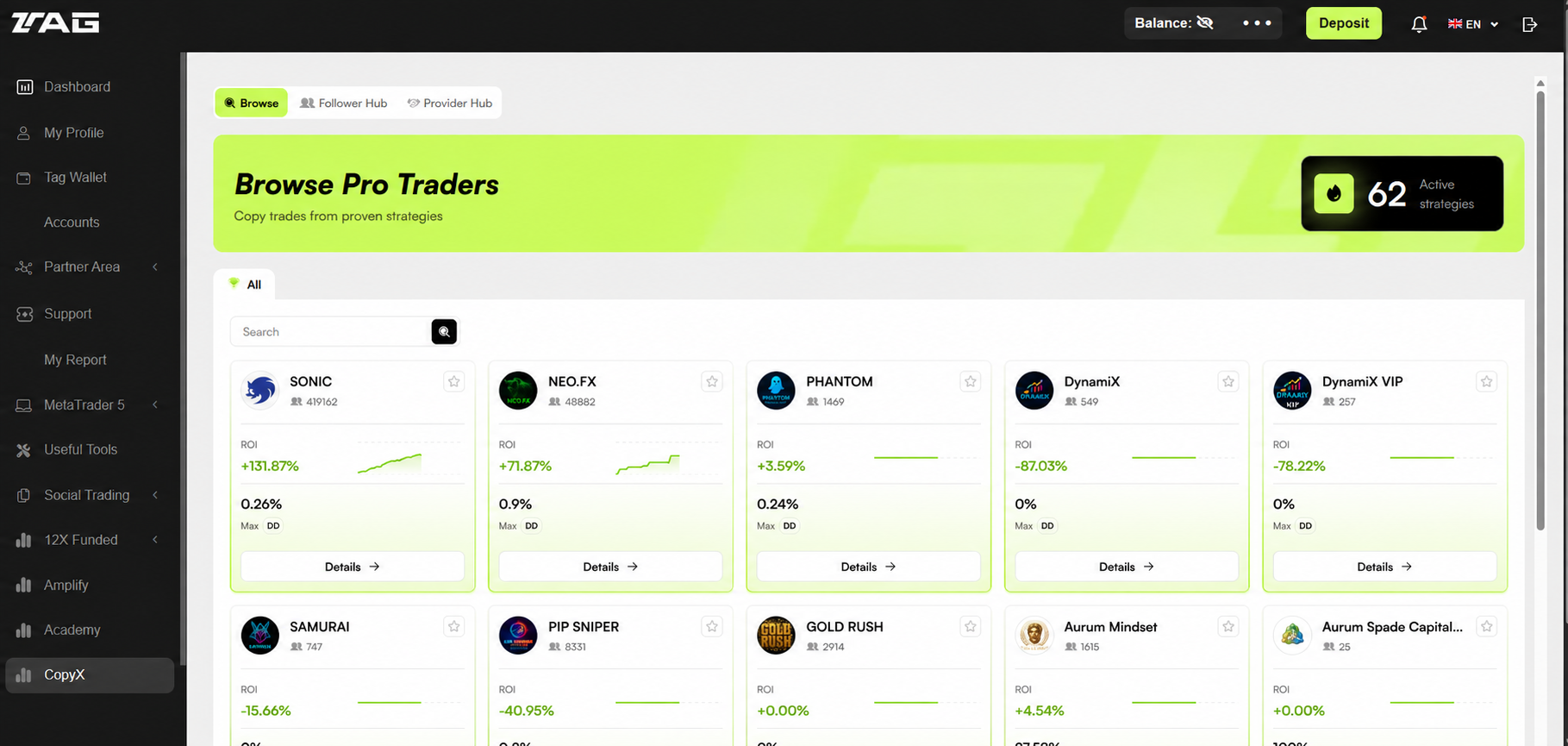
Scroll down in the left menu and choose CopyX.
Find SONIC in the strategy overview.
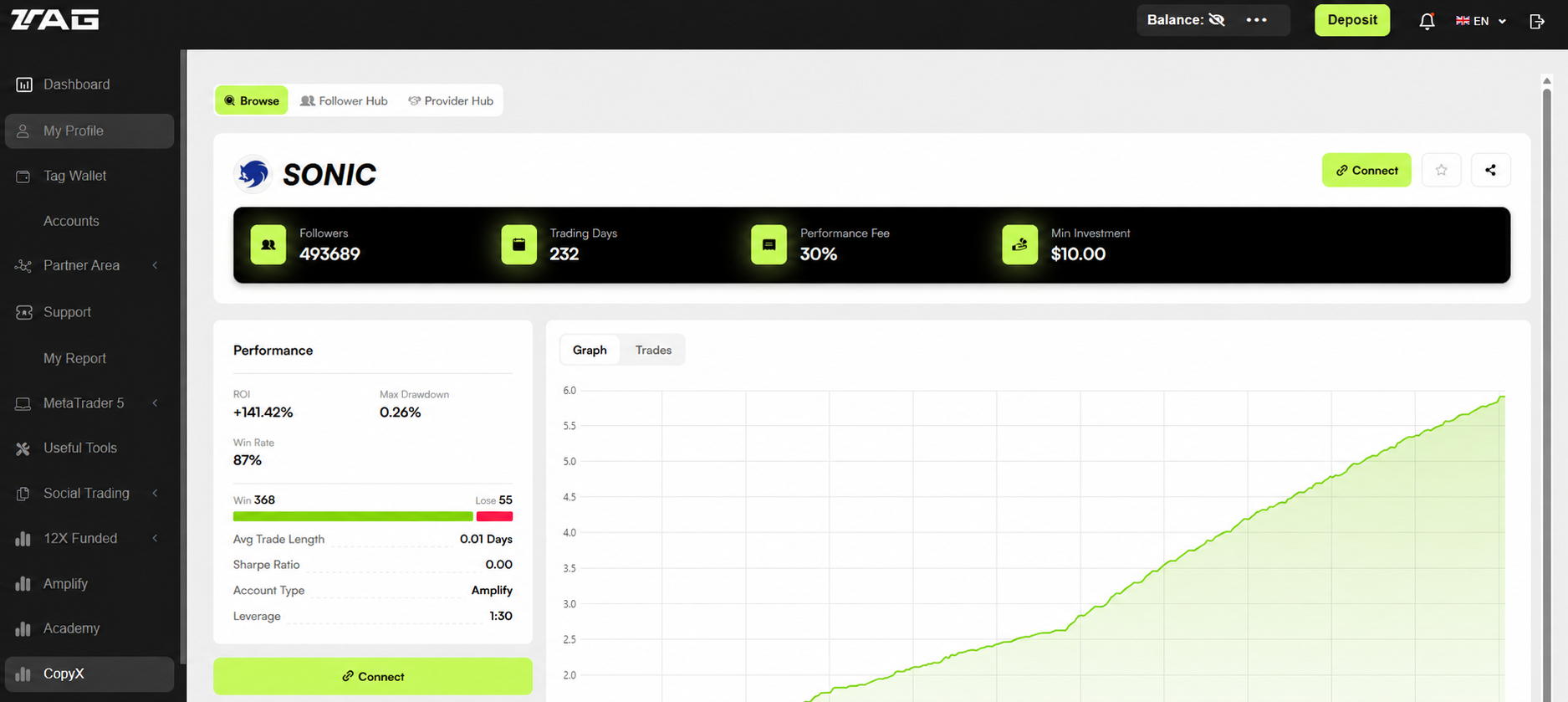
Open Details and read the current statistics and conditions.
Compare the information with the public Myfxbook record.
The CopyX menu and the SONIC listing · Tap to enlargeSONIC Details with the Connect button · Tap to enlargeView the SONIC Myfxbook record ↗
✓
Check before you continue
You've opened the SONIC details page and reviewed the costs, term and risks.
Step 05 / 11
Check your account and funding
In your logged-in account, check which account type you're using and what the minimum is.
Open the deposit or funding function the platform offers for your account.
Choose an available payment method and check the currency, costs and any processing time.
Follow the instructions on the platform. With crypto, use exactly the coin and the network shown.
Wait until the available balance is visible on the correct account before you confirm an investment.
The minimum amount and costs may differ per account. Read the current amounts in your own account. Linking a BIX wallet in step 9 is a separate action and is not a deposit in itself.
✓
Check before you continue
The correct account is selected and you understand the funding conditions. Only deposit when you decide to continue yourself.
Step 06 / 11
Connect SONIC and check the tokens
Choose Connect on the SONIC details page.
Enter the investment amount and the requested fields on the Copy Strategy screen.
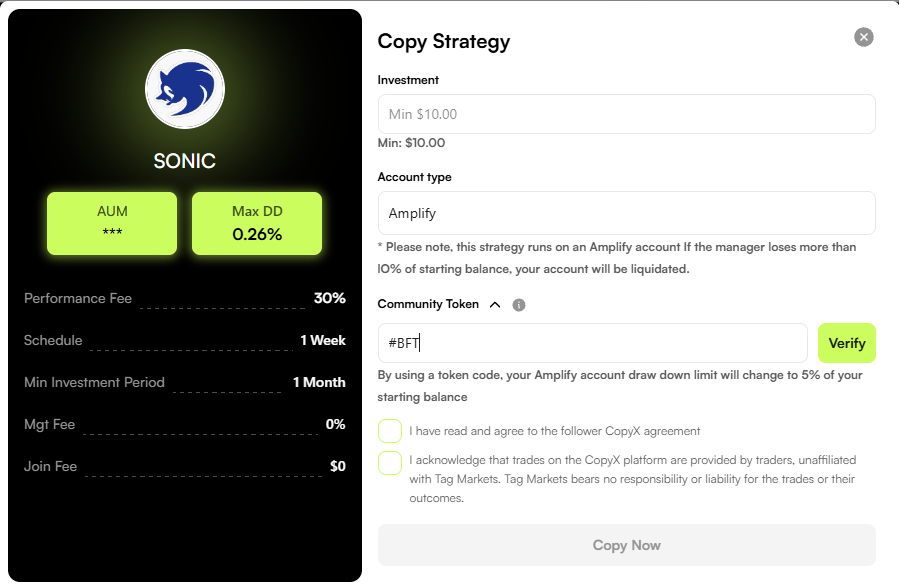
For the 24X account, use the Community Token provided during your onboarding and select Verify. The existing example shows #BFT.
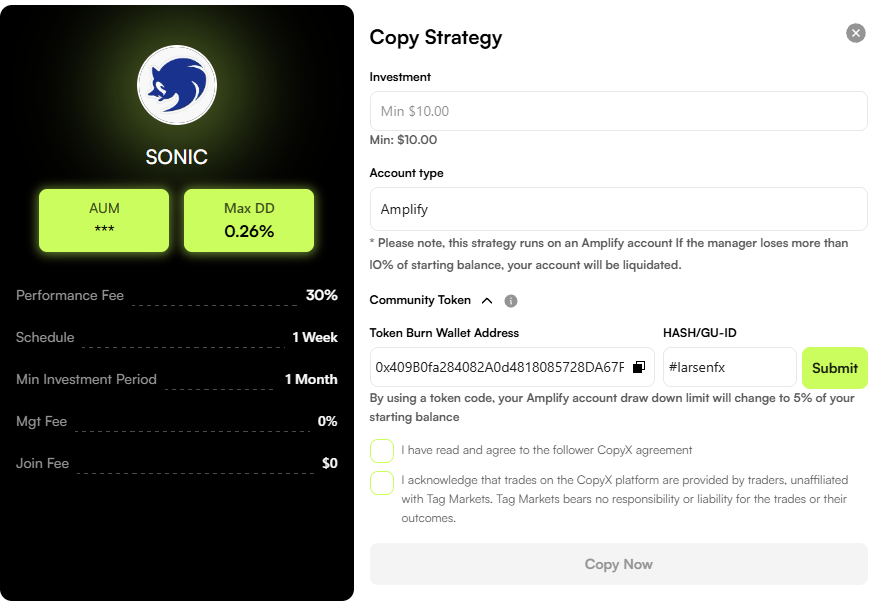
The existing onboarding mentions #larsenfx for Token from Wallet Address; then select Submit.
Check whether these tokens apply to your account, read both agreements and only then confirm with Copy Now.
Example: verifying the Community Token · Tap to enlargeExample: submitting Token from Wallet Address · Tap to enlarge
The screenshots are examples from the existing guide. Don't blindly copy a token or amount if your account shows different instructions.
✓
Check before you continue
The correct SONIC strategy, amount and account conditions appear on the confirmation.
Step 07 / 11
Check the active connection
Open your strategy overview in CopyX and check the connection status.
Check the allocation, the balance and any copied positions.
Keep monitoring your account value and risk. Execution may differ due to slippage, timing, broker settings and balance.
Find the pause or disconnect option and read what happens to open positions before you use it.
Your connection is visible in CopyX and you know where to check the status.
Step 08 / 11
Review the BIX card conditions
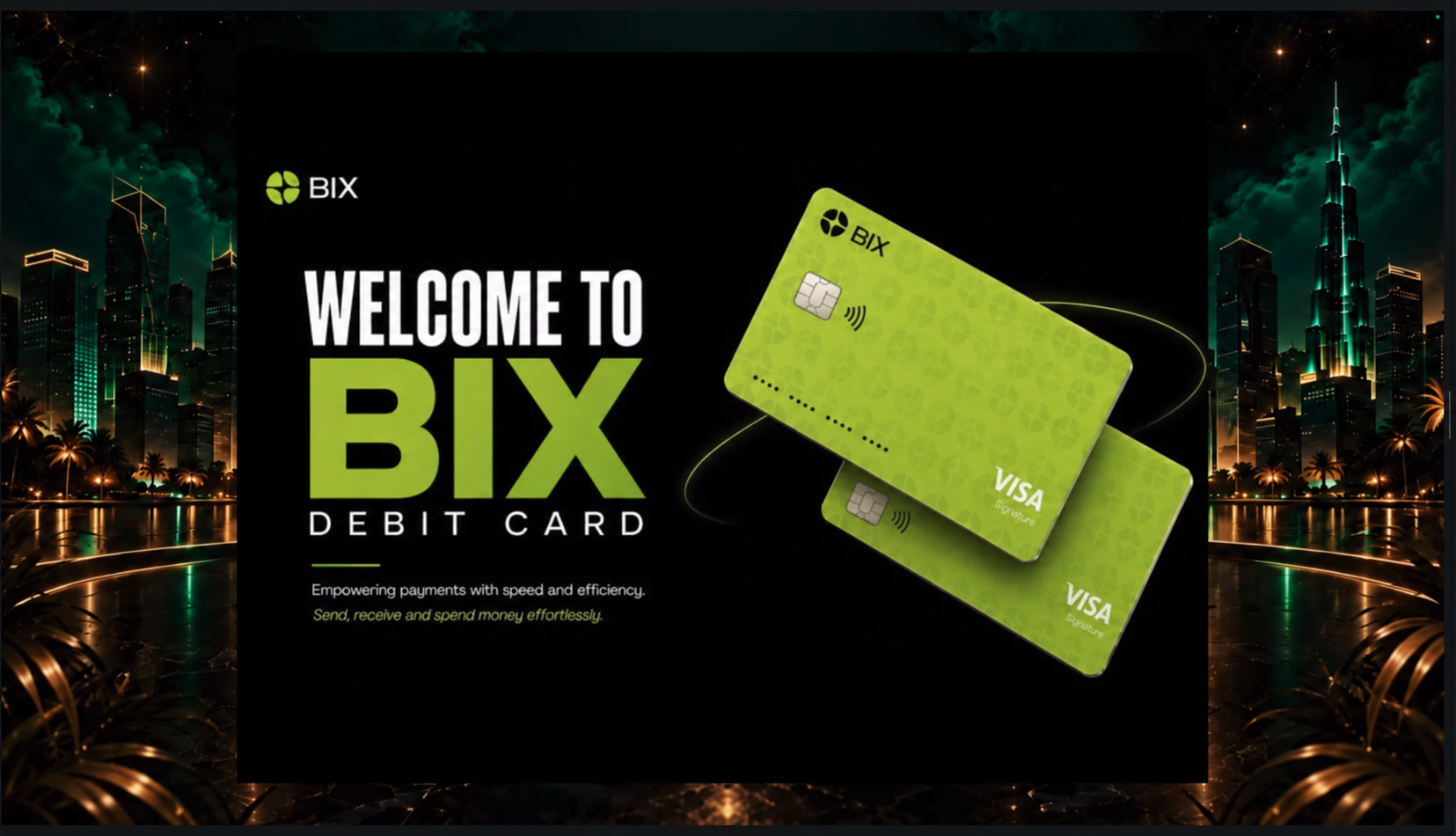
The existing SONIC page announces the BIX payment card as a future feature. Use the original BIX link to check current availability, supported countries, costs and conditions.
View BIX and the card ↗BIX payment card — product preview from the existing guide · Tap to enlarge
A linked wallet does not automatically mean your card has been requested or is active. Go through the application and any verification in BIX itself.
✓
Check before you continue
You've reviewed the current BIX conditions and know whether a card is available to you.
Step 09 / 11
Link your BIX wallet
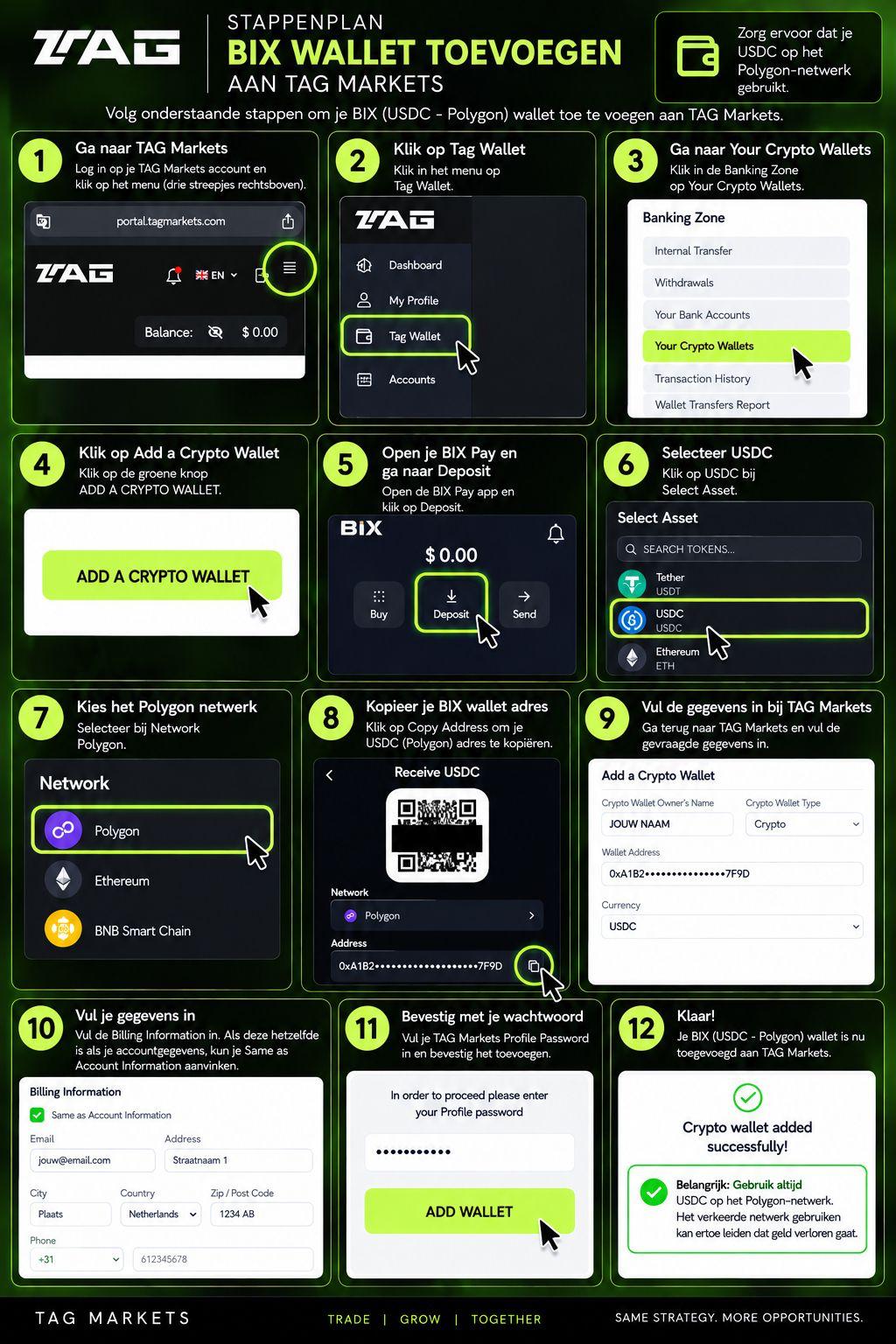
The existing BIX explanation links a receiving address for USDC on Polygon to Tag Markets. Check that both platforms still support that combination before you send anything.
Open Tag Markets and choose Tag Wallet at the top right.
In the Banking Zone, go to Your Crypto Wallets and choose Add a Crypto Wallet.
Open BIX Pay and choose Deposit → USDC → Polygon.
Copy the wallet address with Copy Address.
Go back to Tag Markets. Enter the wallet owner's name, choose Crypto, paste the address and select POL.
Fill in Billing Information or choose Same as Account Information where applicable.
Confirm with your Tag Markets profile password and select Add Wallet.
Check for the message Crypto wallet added successfully.
The original visual BIX wallet guide in twelve steps · Tap to enlarge
Check before every transfer: compare coin, network and receiving address on both platforms. Stop if the options differ. A wrong network or address can lead to loss.
✓
Check before you continue
The BIX address is correctly saved as your USDC wallet on Polygon and you see the confirmation.
Step 10 / 11
Reinvest available profit
Open CopyX in the left menu.
At the top, select Follower Hub and then Strategies.
Choose Reinvest for your strategy.
Enter the amount, read the consequences for your term and confirm with Upgrade if you agree.
The existing example states that the trading days start again at zero after an upgrade. The existing explanation also mentions a lock on the initial deposit for 31 days after the first trade. Check the conditions of your account; don't take this term as a universal guarantee.
✓
Check before you continue
You've reviewed the confirmation and the new balance, and know which term now applies to your account.
Step 11 / 11
Request a withdrawal
Open CopyX → Follower Hub → Strategies.
Choose Withdraw next to the strategy concerned.
Check which amount is available and which costs, limits and conditions apply.
Follow the withdrawal instructions. If a receiving wallet is requested, check your saved address, the coin and the network.
Check the request status and keep the confirmation. Check receipt in your own wallet or account.
The existing explanation distinguishes the initial deposit from available profit. The withdrawable amount and processing depend on the current account conditions. Don't blindly repeat a request if the status is still pending.
✓
Check before you continue
Your withdrawal request is confirmed and you know where to check the status and final receipt.
Guide completed
You know where to continue.
This progress only tracks which explanations you've viewed. Always check your account status on the platform itself.
SONIC AI is an automated trading system with a publicly tracked account on Myfxbook. CopyX passes the trades on to connected accounts. Automation describes the execution and does not guarantee profit.
Strategy trades
The system opens and closes positions according to its own trading logic.
CopyX passes it on
The platform tries to copy trades according to the configured connection.
Your account follows
Timing, balance, leverage and execution can lead to different results.
Public track record
View current performance at the source.
Use the public Myfxbook record for current gain, drawdown, trade history and monthly results. Assess both the losses and the profits, and the length of the track record.
No. Every form of trading involves risk. A public track record is not a guarantee or an independent audit of the strategy.
What does it cost and what is the minimum investment?
Check the current platform, broker, subscription and any performance fees in CopyX. Check the amounts before you confirm an investment.
Is Myfxbook the same as CopyX?
No. Myfxbook shows the public performance history. CopyX is used for registration and connecting the strategy.
Why do I get a second login?
You activate CopyX from the Tag Markets dashboard via CopyX Registration. Then you open CopyX in the menu to choose the strategy. Follow steps 3 and 4.
Personal help
Shall we take a look together?
Go through the steps first. If you get stuck after that, we'll help you further.